When Project Glass hit the headlines earlier this year following Sergey Brin's demo at Google I/O I must admit I wasn't massively interested. I've never thought much about Augmented Reality/ wearable computing other than finding the concept vaguely scary.
However, following the London Olympics/ Paralympics I found myself thinking about the role of technology in sport. It looks as though sport is going to be one of the main areas developers will look to target with Project Glass apps - there are already projects under development to that end.
Although I'm not competitive, I love to swim and started to think about the possibility of smart swimming goggles. Since Project Glass runs Android, I thought about how I would love to come up with some swimming apps. I'm a big fan of swimming techniques including the Shaw Method and Total Immersion, so initial app ideas would probably focus on the quality of the swimming experience rather than exclusively on competitive/ high performance aspects. Following a cursory Google search on the topic, I was pleased to find that the company has indeed acquired a patent for swimming goggles.
Anyway, this development has basically got me excited about programming for the first time in a while. Although I love developing applications, I haven't felt too creatively stimulated recently, mainly because I don't spend enough time working on my own projects. I've got a lot to learn if I do want to target these devices, as I know virtually nothing about AR or wearable computing at the moment. I'll be posting on the topic as I learn more about it, and keep my fingers crossed that the smart goggles do become a reality.
Here are some related links:
Hacking for Fun: Programming a Wearable Android Device
Could Google Glass Change Pro Sports Forever?
Google Googles For The Open Water?
Google Acquires Swimming Goggle Patent
Wikipedia: Project Glass
Project Glass on Google+
Monday, 1 October 2012

Thursday, 2 August 2012
Using the Android Crop Intent and Action
Recently I discovered that using standard intents and actions to capture and crop an image was not as straightforward as I had expected. I had assumed there would be a standard, reliable way to launch any apps that can perform a cropping action on images but was unfortunately wrong. Launching the camera is pretty consistent, but cropping an image you have either allowed the user to capture with the camera or choose from the device, for example with a file explorer app or the standard gallery app, is not so easy.
There is a generic action you can use for cropping that is supported on many user devices, but not all of them. The following represents the closest we have to a standard approach to launching a cropping Activity:
You need to pass various additional data values to the Intent before starting it, and if you want the cropped image to return to your code you need to call the Intent using startActivityForResult, then implement onActivityResult to process the returned cropped image.
So far so good, but unfortunately there are lots of Android vendors whose devices do not support this action. You have two broad options:
If you opt for the first approach, you can include the code in which you call the Intent in a try block, with a catch block outputting an informative error message letting the user know why they can't complete the cropping action. If you opt for the second approach, you have a more complex task in front of you.
See this Stack Overflow post for an example of how to handle differing device crop Activities:
Android Camera Intent with Crop
For an overview of using the basic crop action above, see my tutorial on Mobiletuts+ for more details:
Capture and Crop an Image with the Device Camera
It seems the Android system is plagued a little by this type of issue. When approaching another task recently I found there is a similar problem when attempting to launch the alarm clock app on a user device - a common aim, particularly for clock widget apps.
There is a generic action you can use for cropping that is supported on many user devices, but not all of them. The following represents the closest we have to a standard approach to launching a cropping Activity:
Intent croppingIntent =
 new Intent("com.android.camera.action.CROP");
You need to pass various additional data values to the Intent before starting it, and if you want the cropped image to return to your code you need to call the Intent using startActivityForResult, then implement onActivityResult to process the returned cropped image.
So far so good, but unfortunately there are lots of Android vendors whose devices do not support this action. You have two broad options:
- Only provide your cropping functionality to users whose devices support this Intent
- Query the user device in order to target specific cropping Activities
If you opt for the first approach, you can include the code in which you call the Intent in a try block, with a catch block outputting an informative error message letting the user know why they can't complete the cropping action. If you opt for the second approach, you have a more complex task in front of you.
See this Stack Overflow post for an example of how to handle differing device crop Activities:
Android Camera Intent with Crop
For an overview of using the basic crop action above, see my tutorial on Mobiletuts+ for more details:
Capture and Crop an Image with the Device Camera
It seems the Android system is plagued a little by this type of issue. When approaching another task recently I found there is a similar problem when attempting to launch the alarm clock app on a user device - a common aim, particularly for clock widget apps.
Monday, 20 February 2012
Creating an Android Battery Widget
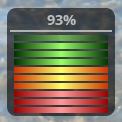
I recently approached the task of developing an Android widget for the first time. I created an Android battery level widget, mainly so that I could write a tutorial on it.
The tutorial was originally published on the Tuts+ marketplace, which has since ceased to operate. Here's a copy of it: Jump Into Android: Create a Battery Level Widget
Anyway, in this article I thought I'd run through a few tips for creating Android widgets, with specific guidance on retrieving and displaying information about aspects of phone state, such as the battery level. We won't go into too much detail here, but hopefully you'll find it a useful overview of Android widget development.
What's the Difference?
In many ways widget development for Android is the same as development for any other app type on the platform. However, although the differences are slight, they can throw you off when you attempt a widget for the first time. I would strongly recommend not attempting a widget as your first app, but instead trying Android widget development after you've tried developing at least one standard application.
You will presumably already know the difference between widgets and other Android apps from the user's point of view, so let's start there. Widgets are not launched from the application menu, but are instead added to the user's homescreen. Some widgets are interactive, normally allowing users to choose settings on pressing the widget once it is on screen, or when it runs for the first time. The download and installation process is basically the same as for other apps.
What you Don't Need to Do
Since widget apps are not launched in the same way as normal apps, your project structure does not need a main Activity class to execute when the application starts up. As well as removing the need for an Activity class file, this means you do not need to include your main launcher Activity in the project Manifest XML file.
What to Do Instead
Instead of a main Activity class, your widget apps need to extend the AppWidgetProvider class. You also need to include your widget provider in the Manifest as a receiver item, specifying a metadata file along with it. If your widget is going to update, you need to indicate this within the Manifest too, using an intent filter. Your metadata file should be saved in "res/xml" and the code within it should define the basic aspects of your widget, including its dimensions and update frequency where appropriate. The metadata file can also specify an initial XML layout resource to use when the widget appears.
Options
That's basically all you need for a widget, but depending on your own project you may need additional elements. For example, you can override the AppWidgetProvider methods, such as onUpdate, specifying what should happen when the widget updates, which will often involve altering the visual display.
You can optionally include an Activity in your app for configuring the widget. Similarly, you can make the widget interactive by supplying a click listener and presenting an options setting section for your users.
Running and Testing
Testing widgets is roughly the same as testing other Android apps, with some exceptions depending on the nature of your own particular projects. For example, when I created my battery level widget, I could only test it properly by running it on a device, because the emulator by default only shows a battery level of 50%. It's always preferable to test your apps on real devices anyway.
Some widgets have serious performance implications. For example, you can use the AlarmManager class to provide more frequent updates to a widget than you can using the XML metadata method. In such apps, you really need to pay extra attention to efficiency, or your users will be dismayed to see their battery levels draining too fast.
Phone State Including Battery Level
So far we've discussed widgets generally, but you have an additional set of considerations if you're creating a widget to indicate phone state such as battery level. To create this type of widget, you need to register for a receiver. This basically means telling the system to inform your app about changes in state.
If you are setting your widget update frequency in the XML metadata, the most often it can receive updates is every 30 minutes. To update more often, you can use a service, implementing an alarm if the widget needs to update when the device is asleep. You will also need a service if your widget is fetching data over the Web.
The Android system issues broadcasts about certain aspects of the device. Some of these are described as "sticky", including the battery level. This means that the last broadcast hangs around the system, allowing your widgets to access the data within it at any time. For a battery level widget that only updates at the frequency set in the XML metadata, this means that the displayed level will actually be whatever the last level broadcast was, which may have been any time in the past half hour at most. Naturally, this is not ideal for all apps, which is why many of them use services and alarms.
Conclusion
So that's an overview of the basics when developing widget apps. Here are a few related links:
Subscribe to:
Posts (Atom)